Source Environment Variables
The sourceenv function sources environment variables from .env files into your current shell session. These .env files are commonly used in software engineering projects to keep track of environment variables. You might see .env.example showing you what values you should set (like this) and then instruct users to copy this file to .env and fill with the real values - this file is then normally git ignored.
Many services and tools will read these files by default (there are libraries for node, python and almost anything else). The sourceenv snippet works in a very similar way - it simply sets these values in your current shell session.
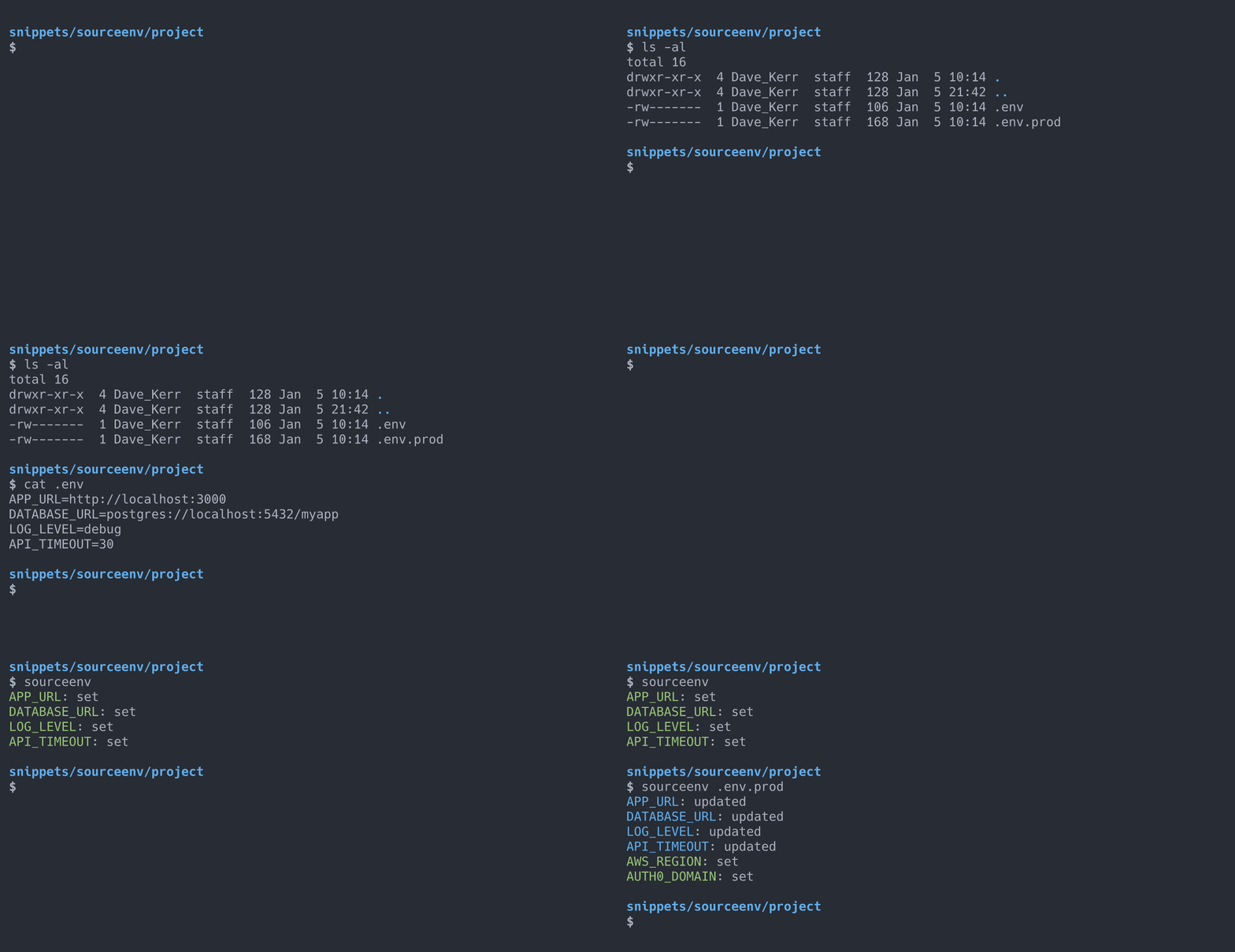
You can run sourceenv like so:
# Just source whatever is in .env in the current directory.
sourceenv

# Source a specific file.
sourceenv .env.prod

# Source in verbose mode, which shows the actual values being set. Use with
# caution as this will write what might be sensitive values to stdout.
sourceenv -v
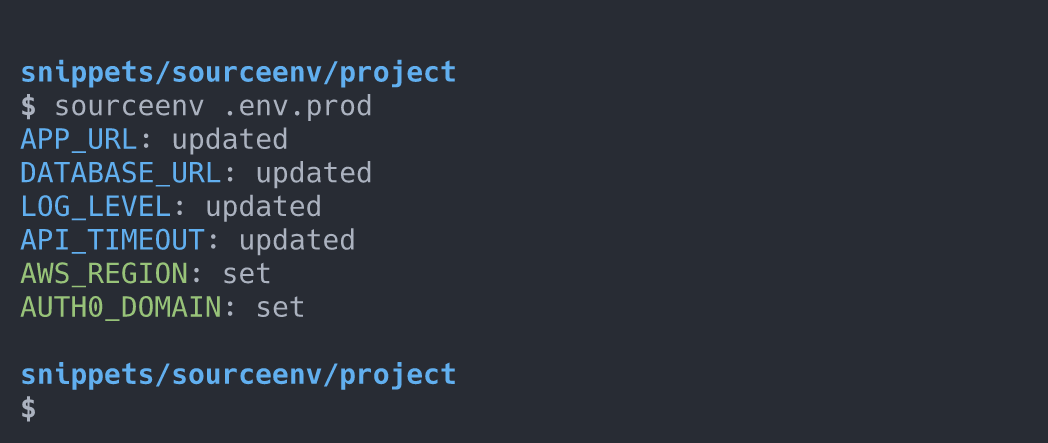
The function shows feedback as it works:
The Code
Find the original code in my dotfiles. It is shown below with much more extensive documentation and explanation!
sourceenv() {
  local name="sourceenv"
  local verbose=false

  # Parse the command line arguments using a case statement.
  # Read more in the chapter "Shell Script Essentials".
  while [[ $# -gt 0 ]]; do
    case $1 in
      -h)
        echo "usage: ${name} [-v] [<path_to_env_file>]"
        echo "  Sources environment variable definitions from a .env file, e.g:"
        echo "  KEY=VALUE"
        echo "  -v  verbose mode (show values being set)"
        exit 0
        ;;
      -v)
        verbose=true
        shift
        ;;
      *)
        env_file="$1"
        shift
        ;;
    esac
  done

  # Default to '.env' in the current directory if no file was specified.
  # Read more in the chapter "Variables, Reading Input, and Mathematics".
  env_file="${env_file:-.env}"

  if [ ! -f "$env_file" ]; then
    echo "error: ${env_file} not found"
    echo "usage: ${name} [-v] [<path_to_env_file>]"
  else
    # Read the file line-by-line. The '|| [ -n "$line" ]' ensures we process
    # the last line even if it doesn't end with a newline.
    while IFS= read -r line || [ -n "$line" ]; do
      # Skip empty lines and lines that start with a comment.
      [[ -z "$line" || "$line" =~ ^[[:space:]]*# ]] && continue

      # Strip inline comments. The regex captures everything before a '#' that
      # isn't followed by quoted content.
      if [[ "$line" =~ ^([^#]*[^[:space:]])([[:space:]]*#.*)?$ ]]; then
        line="${BASH_REMATCH[1]}"
      fi

      # Match lines that look like 'KEY=value'. The regex ensures the variable
      # name starts with a letter or underscore.
      if [[ "$line" =~ ^([A-Za-z_][A-Za-z0-9_]*)=(.*)$ ]]; then
        var_name="${BASH_REMATCH[1]}"
        var_value="${BASH_REMATCH[2]}"

        # Strip surrounding quotes (single or double) from the value.
        if [[ "$var_value" =~ ^\"(.*)\"$ ]] || [[ "$var_value" =~ ^\'(.*)\'$ ]]; then
          var_value="${BASH_REMATCH[1]}"
        fi

        # Show the user whether we're setting a new variable or updating an
        # existing one. The '${!var_name:-}' syntax checks if the variable is
        # already set. Blue for updates, green for new variables.
        # Read more in the chapter "Customising Your Command Prompt".
        if [[ -n "${!var_name:-}" ]]; then
          if [[ "$verbose" == true ]]; then
            echo -e "\033[34m${var_name}\033[0m: updated ($var_value)"
          else
            echo -e "\033[34m${var_name}\033[0m: updated"
          fi
        else
          if [[ "$verbose" == true ]]; then
            echo -e "\033[32m${var_name}\033[0m: set ($var_value)"
          else
            echo -e "\033[32m${var_name}\033[0m: set"
          fi
        fi

        # Export the variable so it's available to child processes.
        export "${var_name}=${var_value}"
      fi
    done < "$env_file"
  fi
}
Installation
Add the function to your shell configuration (e.g., ~/.bashrc or ~/.zshrc), or if you use a dotfiles setup, place it in a file that gets sourced on shell startup.
The latest version is available in my dotfiles.